Sculpt入力データファイル
Sculpt への入力ファイルを指定するためのオプションです。Sculpt は、Cartesian または非構造グリッド上で定義された体積分率に基づいて Geometry を表現します。facet ベース(STL)または解析的(diatom)な Geometry を入力できますが、Hex メッシュを生成する前に入力 Geometry を必要な体積分率表現へ変換します。さまざまな形式の体積分率データを Sculpt へ直接読み込み、Hex メッシングの基礎として使用することもできます。現在 Sculpt がサポートする Geometry 形式は次のとおりです:
- STL(stl_file)
- Diatom(diatom_file)
- Volume Fractions
- Exodus 要素変数(import_vfrac)
- Exodus block(import_cart_exo)
- ASCII Voxel データ(import_spn)
- ASCII 体積分率データ(import_micro)
Input Data Files             -inp     --input
  --stl_file                 -stl  <arg> Input STL file
  --diatom_file              -d    <arg> Input Diatom description file
  --input_vfrac              -ivf  <arg> Input from Volume Fraction file base name
  --input_micro              -ims  <arg> Input from Microstructure file
  --input_cart_exo           -ice  <arg> Input from Cartesian Exodus file
  --input_spn                -isp  <arg> Input from Microstructure spn file
  --spn_xyz_order            -spo  <arg> Ordering of cells in spn file
  --compress_spn_ids         -csp  <arg> Compress IDs from SPN file
  --input_stitch             -ist  <arg> Input from Stitch file
  --stitch_timestep          -stt  <arg> Timestep in Stitch file to read
  --stitch_timestep_id       -stn  <arg> Timestep ID in Stitch file to read
  --stitch_field             -stf  <arg> Field in Stitch file to read
  --stitch_info              -sti        List header info for Stitch file
  --lattice                  -l    <arg> STL Lattice Template File

Sculpt Command Summary
STL ファイル
Command: stl_file     Input STL file

Input file command:   stl_file <arg>
Command line options: -stl <arg>
Argument Type:        file name with path
コマンド説明:
入力として使用する単一の STL(facet geometry)ファイル名です。Sculpt を実行するには stl_file または diatom_file のいずれかを指定する必要があります。stl_file オプションは単一の STL ファイルを扱います。各ファイルが異なる材料を表す複数の STL ファイルを使用する場合は、複数のファイル名を指定できる diatom_file オプションを使用します。
Sculpt への入力に使用する STL ファイルは「watertight」であることを推奨します。watertight でない Geometry でも多くの場合は処理できますが、予期しない結果や誤った結果になる可能性があります。まず Cubit で STL Geometry を読み込み、sculpt parallel コマンドで Sculpt 用の新しい STL Geometry ファイルを書き出すことを推奨します。Cubit の sculpt parallel コマンドは、完全に閉じていない三角形 facet の stitch と修復を試みます。STL Geometry を Sculpt で使用する前に修復するための市販ツールも利用できます。
Diatom ファイル
Command: diatom_file     Input Diatom description file

Input file command:   diatom_file <arg>
Command line options: -d <arg>
Argument Type:        file name with path
コマンド説明:
Sculpt の入力として使用する diatom ファイル名です。stl_file と diatom_file を同時に使用することはできません。diatom ファイルは、モデルの完全な Geometry 定義を生成するための primitive を含む CSG(Constructive Solid Geometry)記述です。Diatom は Sandia の CTH および Alegra コードへの入力として一般に使用されます。1つの Diatom ファイル内に複数の STL ファイルを定義することもできます。次は3つの異なる STL ファイルを読み込む単純な diatom ファイルの例です:
    diatoms
      package 'blue_material'
        material 1
        insert stl
          file = 'blue_part1.stl'
        endinsert
        insert stl
          file = 'blue_part2.stl'
        endinsert
      endpackage
      package 'red_material'
        material 2
        insert stl
          file = 'red_part1.stl'
        endinsert
      endpackage
    enddiatom
最初の2ファイル blue_part1.stl と blue_part2.stl は同じ材料に属することに注意してください。そのため、これらのファイルの Geometry 内で生成された要素は block 1 に属します。同様に、red_part1.stl の Geometry 内で生成された要素は block 2 に属します。
Bitmap ファイル
Diatom 形式は bitmap ファイルにも対応します。これは、指定した材料について各セルを on または off に設定するバイナリファイルです。次に bitmap ファイル用の diatom 指定例を示します。bitmap 指定には入力ファイルサイズを示す nx、ny、nz 寸法が含まれることに注意してください。
    diatoms
      package 'Skull'
        material 1
        insert bitmap
          file = 'skull_bitmap_file'
          nx = 680
          ny = 408
          nz = 236
        endinsert
      endpackage
    enddiatom
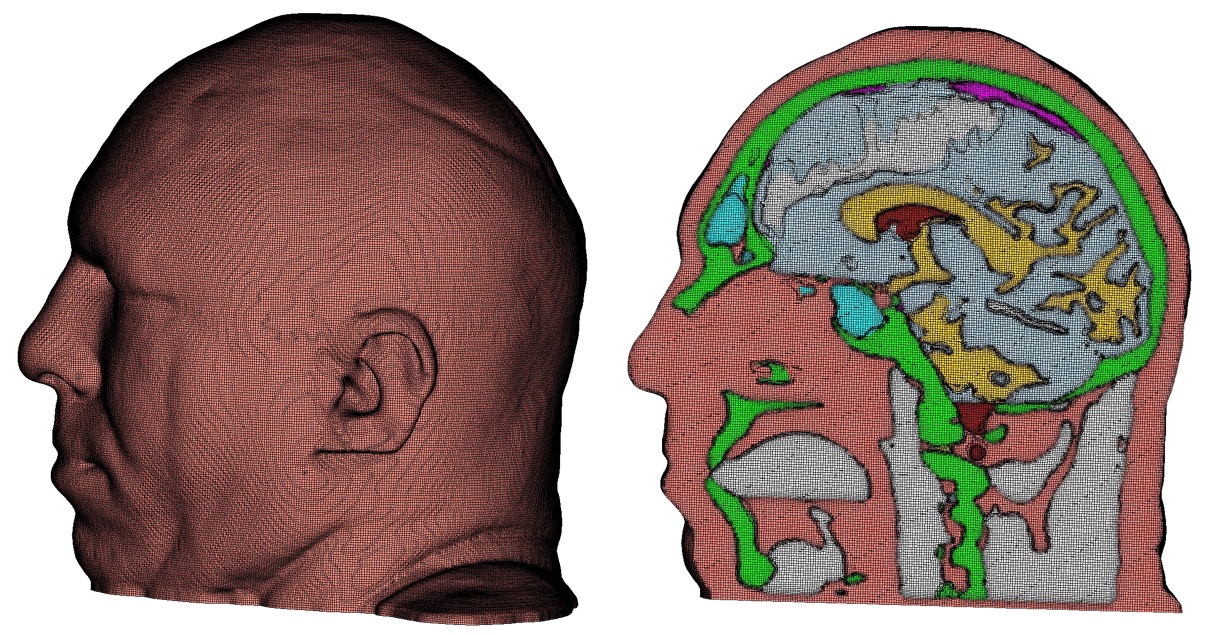
diatom 形式の詳細については、CTH または Alegra のドキュメントを参照してください。
D. A. Crawford, A. L. Brundage, E. N. Harstad, K. Ruggirello, R. G. Schmitt, S. C. Schumacher and J. S. Simmons, "CTH User’s Manual and Input Instructions, Version 10.3", CTH Development Project, Sandia National Laboratories, Albuquerque, New Mexico 87185, February 14, 2013
入力体積分率ファイル
Command: input_vfrac     Input from Volume Fraction file base name

Input file command:   input_vfrac <arg>
Command line options: -ivf <arg>
Argument Type:        base file name with path
コマンド説明:
Sculpt は、要素変数として保存された体積分率データを含む Exodus ファイルを任意で入力できます。通常、この Exodus ファイルは --volfrac_file(-vf)オプションを使用して事前に書き出されたものです。Exodus ファイルは複数プロセッサに分散した Cartesian グリッドとなるため、このコマンドの引数には並列 Exodus ファイル群のベースファイル名を使用します。入力体積分率ファイルは STL または diatom ファイルの代わりに使用されます。Geometry から体積分率を計算する処理には時間がかかることがあるため、同じ体積分率データから複数のメッシュを生成する場合は、体積分率を事前計算してファイルから読み込むと有効です。
入力 Microstructure ファイル
Command: input_micro     Input from Microstructure file

Input file command:   input_micro <arg>
Command line options: -ims <arg>
Argument Type:        file name with path
コマンド説明:
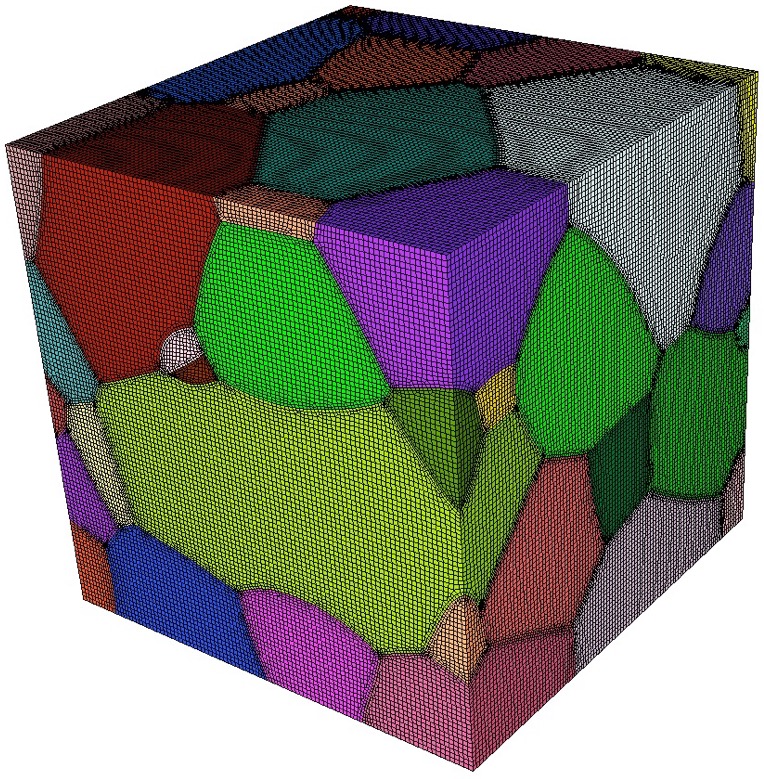
microstructure ファイルは、Cartesian グリッドの各セルについて体積分率データを含む ASCII テキストファイルです。このファイル形式は、ヘッダー情報に続いて各セルのデータを記述します。次に例を示します:
TITLE = triple line system
VARIABLES = x y z, phi_1, phi_2, phi_3
ZONE i = 2 , j = 2 , k = 2
0.0000       0.0000       0.0000      0.5000      0.5000      0.0000
1.0000       0.0000       0.0000      0.3333      0.3333      0.3334
0.0000       1.0000       0.0000      1.0000      0.0000      0.0000
1.0000       1.0000       0.0000      0.0000      1.0000      0.0000
0.0000       0.0000       1.0000      0.2000      0.4000      0.4000
1.0000       0.0000       1.0000      0.6000      0.1000      0.3000
0.0000       1.0000       1.0000      0.0000      0.0000      1.0000
1.0000       1.0000       1.0000      0.9000      0.0000      0.1000
ヘッダー情報には次を含める必要があります:
TITLE:任意の説明文字列
VARIABLES:空白またはカンマで区切った変数一覧。最初の3つの変数名として x、y、z を含める必要があります。残りの名前は任意です。列挙する変数名の数は、Cartesian グリッドの各セルのデータ値数と一致する必要があります。
ZONE:i、j、k 方向(それぞれ x、y、z に対応)のセル数を指定します。
ファイル本体には、グリッドの各セルにつき1行を記述します。最初の3つの値はグリッド内セルの重心位置に対応します。残りの値は、一覧に示された各変数について、そのセルの体積分率を表します。各セルの体積分率の合計は 1.0 でなければなりません。
現在、この形式ではセルサイズを正確に 1.0 × 1.0 × 1.0、最小セル重心位置を常に 0.0, 0.0, 0.0 と仮定します。その結果、Cartesian グリッドの最小座標は (-0.5, -0.5, -0.5)、最大座標は (i-0.5, j-0.5, k-0.5) となります。1 × 1 × 1 以外のサイズが必要な場合は、scale および/または translate オプションの使用を検討してください。
このコマンドの使用例は次のとおりです:
sculpt -j 8 -ims my_micro_file.tec -p 1
Smoothing:ユーザーがオプションを定義していない場合、Sculpt は smoothing の既定値を自動設定します。これには次が含まれます:
--smooth 9 (surface smoothing option - no surface projection)
--csmooth 2 (curve smoothing option - hermite interpolation)
これらのオプションを使用すると、通常はより滑らかな Curve と Surface の表現が得られますが、体積分率による Geometry 定義に厳密には従わない場合があります。既定値を上書きするには、次のオプションの使用を検討してください:
--smooth 8 (surface smoothing option - projection to interpolated surface)
--csmooth 5 (curve smoothing option - projection to interpolated curve)
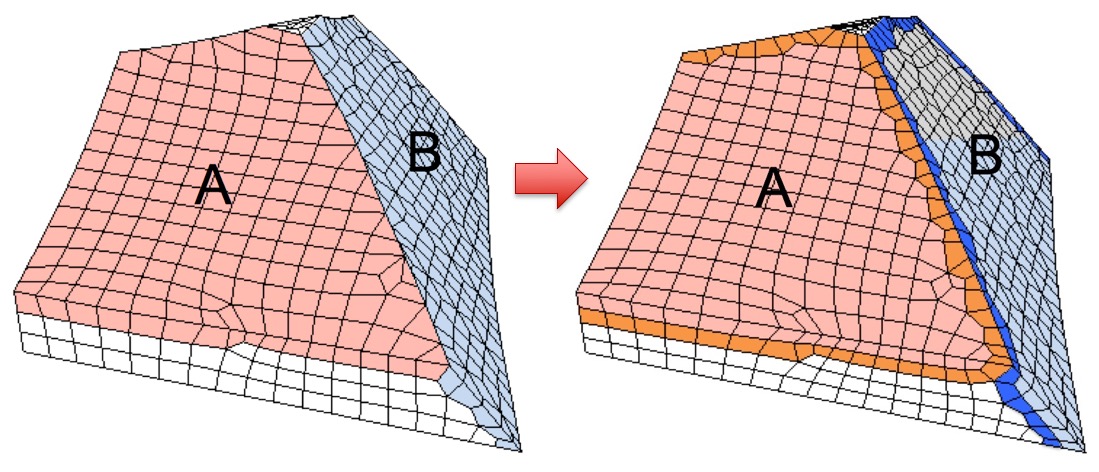
Pillowing:多くの3Dモデルでは、triple junction(少なくとも3つの材料が隣接する Curve)が、通常なら不正形状の Hex 要素が生成される位置に形成されるため、pillowing の使用を推奨します。Surface pillowing(option 1)で通常は triple junction 周辺の低品質要素を除去できます。
入力 Cartesian Exodus ファイル
Command: input_cart_exo     Input from Cartesian Exodus file

Input file command:   input_cart_exo <arg>
Command line options: -ice <arg>
Argument Type:        file name with path
コマンド説明:
Cartesian グリッド要素を含む Exodus メッシュを Sculpt メッシュの入力として使用することもできます。このオプションでは、次の条件を満たす必要があります:
- 単一の(非並列)Exodus II 形式ファイル。
- Cartesian グリッドとして配置された Hex 要素のみを含みます。
- すべての Hex 要素は、正確な立方体でなければなりません。
- 各 Hex 要素には正確に1つの block が割り当てられている必要があります。(ファイル内には任意個数の block を定義できます。)
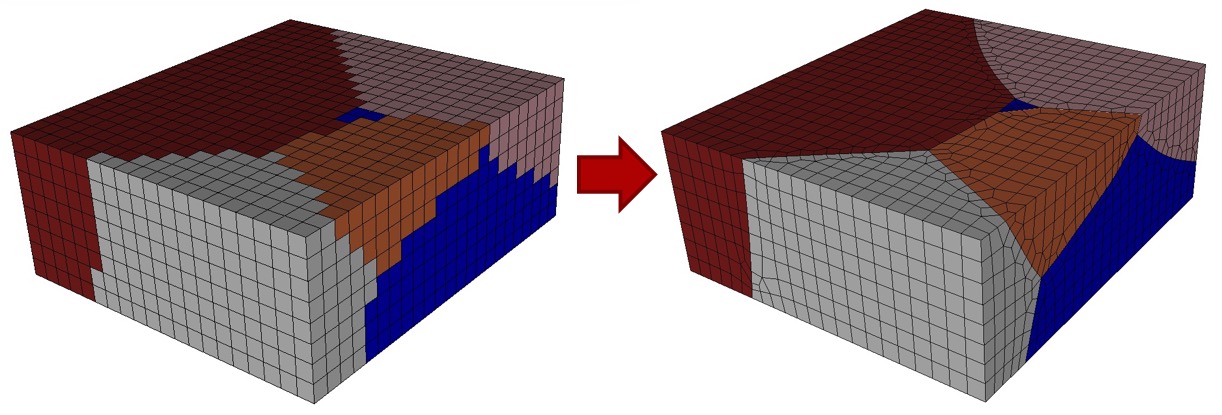
これらの条件を満たすと、Sculpt は各 block を別々の材料として扱い、材料間に滑らかな適合メッシュを生成します。このオプションは stair-step メッシュを滑らかな適合メッシュへ変換する場合に有用です。生成される Sculpt メッシュは元の Exodus メッシュと同じ寸法ですが、材料界面に Hex 層が追加されます。
このコマンドの使用例は次のとおりです:
sculpt -j 8 -ice my_cartesian_file.e -p 1
Smoothing:ユーザーがオプションを定義していない場合、Sculpt は smoothing の既定値を自動設定します。これには次が含まれます:
--smooth 9 (surface smoothing option - no surface projection)
--csmooth 2 (curve smoothing option - hermite interpolation)
これらのオプションを使用すると、通常はより滑らかな Curve と Surface の表現が得られますが、体積分率による Geometry 定義に厳密には従わない場合があります。既定値を上書きするには、次のオプションの使用を検討してください:
--smooth 8 (surface smoothing option - projection to interpolated surface)
--csmooth 5 (curve smoothing option - projection to interpolated curve)
Pillowing:多くの3Dモデルでは、triple junction(少なくとも3つの材料が隣接する Curve)が、通常なら不正形状の Hex 要素が生成される位置に形成されるため、pillowing の使用を推奨します。Surface pillowing(option 1)で通常は triple junction 周辺の低品質要素を除去できます。
入力 Microstructure SPN ファイル
Command: input_spn     Input from Microstructure spn file

Input file command:   input_spn <arg>
Command line options: -isp <arg>
Argument Type:        file name with path
コマンド説明:
.spn ファイルは、メッシュ生成用の体積分率データを Sculpt に読み込むための任意の入力方式です。この形式は、Cartesian グリッドの各セルにつき1つの整数を含む単純な ASCII テキストファイルです。各整数は一意の材料識別子を表します。材料数に制限はありませんが、実用上、妥当な性能を得るには一意な材料数を概ね50以下にすることを推奨します。
2材料からなる 3 × 3 × 3 グリッドを含むファイルは、たとえば次のように定義できます:
    1 1 2 1 2 1 1 1 1
    1 2 2 1 2 2 1 1 2
    2 1 1 1 2 1 1 2 2
材料の識別には任意の一意な整数を使用できます。同じ ID のすべてのセルは、最終メッシュで同じ Exodus block ID を持つ連続ブロックとして定義されます。各整数は空白または改行で区切ります。ファイル内の整数の個数は Cartesian グリッドのセル数と正確に一致する必要があります。Cartesian グリッドの寸法は入力の一部としてコマンドラインで指定する必要があります。次に例を示します:
sculpt -j 8 -x 10 -y 24 -z 15 -isp "my_spn_file.spn" -p 1
入力ファイル内セルの既定の読み取り順序は次のスキーマです:
    for (i=0; i<nx; i++)
      for (j=0; j<ny; j++)
        for (k=0; k<nz; k++)
           // read next value from file
ここで nx、ny、nz は各 Cartesian 方向のセル数です。この順序は spn_xyz_order オプションで nz、ny、nx に変更できます。Cartesian グリッドの初期サイズは正確に nx × ny × nz で、最小座標は (0.0, 0.0, 0.0) です。既定以外のサイズが必要な場合は、scale および/または translate オプションの使用を検討してください。
Smoothing:ユーザーがオプションを定義していない場合、Sculpt は smoothing の既定値を自動設定します。これには次が含まれます:
--smooth 9 (surface smoothing option - no surface projection)
--csmooth 2 (curve smoothing option - hermite interpolation)
これらのオプションを使用すると、通常はより滑らかな Curve と Surface の表現が得られますが、体積分率による Geometry 定義に厳密には従わない場合があります。既定値を上書きするには、次のオプションの使用を検討してください:
--smooth 8 (surface smoothing option - projection to interpolated surface)
--csmooth 5 (curve smoothing option - projection to interpolated curve)
Pillowing:多くの3Dモデルでは、triple junction(少なくとも3つの材料が隣接する Curve)が、通常なら不正形状の Hex 要素が生成される位置に形成されるため、pillowing の使用を推奨します。Surface pillowing(option 1)で通常は triple junction 周辺の低品質要素を除去できます。
SPN ファイル内セルの XYZ 順序
Command: spn_xyz_order     Ordering of cells in spn file

Input file command:   spn_xyz_order <arg>
Command line options: -spo <arg>
Argument Type:        integer (0 to 5)
Input arguments: xyz (0)
                 xzy (1)
                 yxz (2)
                 yzx (3)
                 zxy (4)
                 zyx (5)
コマンド説明:
このオプションは 'input_spn' オプションと組み合わせて使用できます。spn 入力ファイル内セルの既定の読み取り順序は、次のスキーマです:
    for (i=0; i<nx; i++)
      for (j=0; j<ny; j++)
        for (k=0; k<nz; k++)
           // read next value from file
spn ファイル内のセル順序が異なる場合、このオプションで順序を指定します。既定値は 0(xyz)です。
Compress IDs in SPN file
Command: compress_spn_ids     Compress IDs from SPN file

Input file command:   compress_spn_ids <arg>
Command line options: -csp <arg>
Argument Type:        no argument
コマンド説明:
このオプションは次と組み合わせて使用できます: input_spn または input_stitch オプションです。既定では、spn または stitch ファイル内の整数を結果メッシュファイルの最終 block ID として使用します。このオプションを ON にすると ID が圧縮され、block ID は1から始まり材料数まで連続します。使用した場合は、block ID と SPN ファイル内で使用された ID の対応一覧を Sculpt の出力で確認してください。
入力 Stitch ファイル
Command: input_stitch     Input from Stitch file

Input file command:   input_stitch <arg>
Command line options: -ist <arg>
Argument Type:        file name with path
コマンド説明:
Stitch は Sandia の SPPARKS(Stochastic Parallel PARticle Kinetic Simulator)に追加された新しい I/O システムです。積層造形(AM)シミュレーション向けに特別に開発されました。Stitch を使用すると、AM 部品へ新しい材料を追加するのと同様の方法で lattice site を追加し、microstructure シミュレーションの出力データベースを段階的に構築します。次を参照してください: dump stitch (https://spparks.github.io/doc/dump.html)および set stitch (https://spparks.github.io/doc/set.html)の各コマンドについては、SPPARKS ドキュメントを参照してください。
Stitch Timestep
Command: stitch_timestep     Timestep in Stitch file to read

Input file command:   stitch_timestep <arg>
Command line options: -stt <arg>
Argument Type:        floating point value
Input arguments: first (-10)
                 last (-20)
コマンド説明:
次と組み合わせて使用します: input_stitch オプションを使用すると、stitch ファイルから抽出する timestep を浮動小数点値で指定できます。次のいずれか一方を使用します: stitch_timestep または stitch_timestep_id のどちらか一方を使用します(両方は使用しません)。どちらも指定しない場合は、stitch ファイル内の最初の timestep が使用されます。stitch ファイル内の最初または最後の timestep を示す浮動小数点値の代わりに、キーワード「first」または「last」を使用することもできます。
Stitch Timestep ID
Command: stitch_timestep_id     Timestep ID in Stitch file to read

Input file command:   stitch_timestep_id <arg>
Command line options: -stn <arg>
Argument Type:        integer > 0
コマンド説明:
次と組み合わせて使用します: input_stitch オプションを使用すると、stitch ファイルから抽出する timestep を表す整数 ID を指定できます。次のいずれか一方を使用します: stitch_timestep_id または stitch_timestep のどちらか一方を使用します(両方は使用しません)。 stitch_timestep_id は整数でなければなりません。 N。これは次を表します: N番目に stitch ファイル内で検出された timestep。 stitch_timestep_id = 1 はファイル内の最初の timestep を表します。どちらも stitch_timestep_id または stitch_timestep が指定されている場合、stitch ファイル内で最初に検出された timestep が使用されます。
Stitch Field
Command: stitch_field     Field in Stitch file to read

Input file command:   stitch_field <arg>
Command line options: -stf <arg>
Argument Type:        character string
コマンド説明:
次と組み合わせて使用します: input_stitch オプションを使用すると、stitch ファイルから抽出する field を指定できます。指定しない場合は、stitch ファイル内の最初の field が使用されます。
Stitch ヘッダー情報を一覧表示
Command: stitch_info     List header info for Stitch file

Input file command:   stitch_info
Command line options: -sti
コマンド説明:
次と組み合わせて使用します: input_stitch オプションを使用すると、指定した stitch ファイルのヘッダー情報を一覧表示できます。もし stitch_info が引数なしで指定されている場合、stitch 情報を一覧表示した後に Sculpt の実行を停止します。
STL Lattice テンプレートファイル
Command: lattice     STL Lattice Template File

Input file command:   lattice <arg>
Command line options: -l <arg>
Argument Type:        file name with path
コマンド説明:
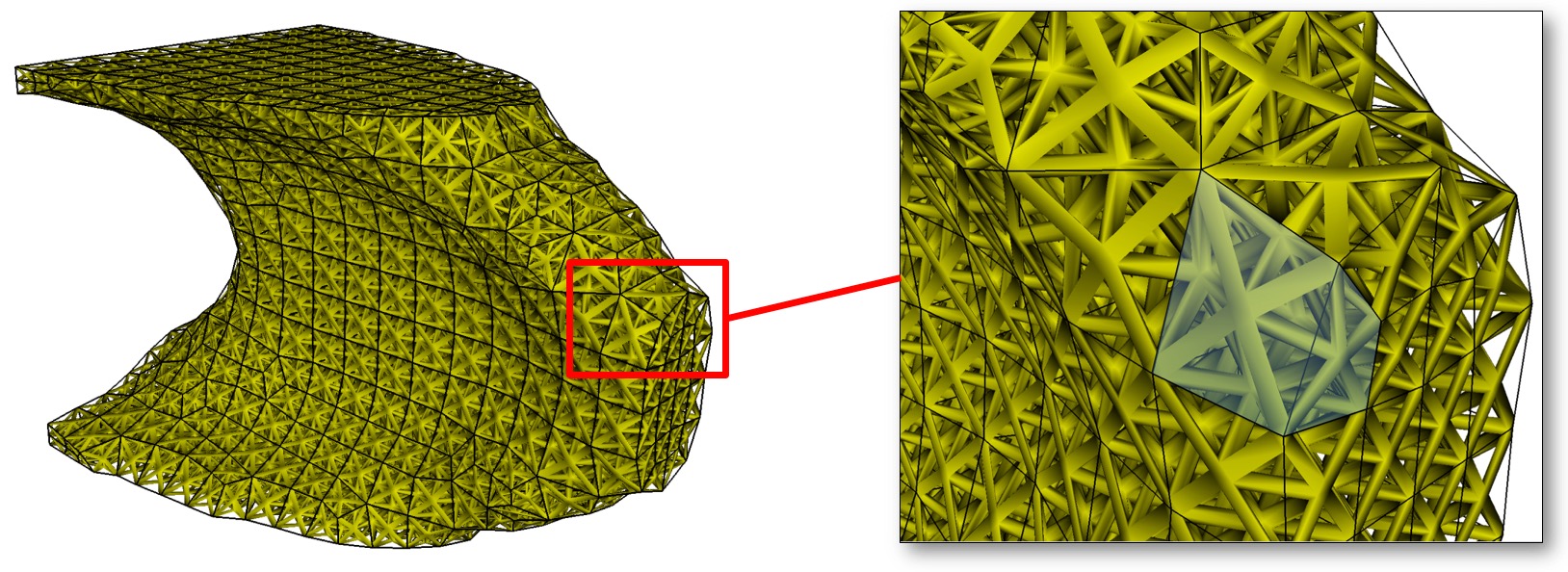
Hex メッシュから lattice 構造を生成します。このコマンドは、単位立方体上の lattice を定義する STL 形式テンプレートファイル名を受け取ります。有効な lattice 構造を生成するには、facet が3つの座標平面に対して対称である必要があります。lattice 構造は変換され、メッシュ内の各 Hex にコピーされます。結果として、メッシュの lattice Geometry を含む STL ファイルが生成されます。
このオプションでは現在、lattice を定義する Exodus メッシュ名が必要です。--exodus_file(-e)オプションでそのパスを指定します。現在の実装は1 block に制限されていますが、Exodus ファイルに2番目の block が含まれる場合、その block は Solid として扱われ、block の skin に STL facet が生成されます。
出力 STL ファイル名は --stl_file(-stl)オプションで定義することもできます。STL ファイルを指定しない場合は、入力 Exodus ファイル名に拡張子「_lattice.stl」を付加した名前が使用されます。
完全な lattice Geometry に加えて、最初の Hex 層の lattice だけを含む追加ファイルも書き出されます。可視化用途に限って STL ファイルサイズを小さくしたい場合に便利です。このファイル名は、完全な STL Geometry ファイル名に拡張子「.vis.stl」を付加したものになります。
次は lattice オプションを使用する入力ファイルの例です:
  BEGIN SCULPT
    lattice = lattice_template.stl  $contains unit cube with triangles
    exodus_file = file.e $ hex mesh containing one or two element blocks
    stl_file = file.stl $ name of output stl file
  END SCULPT
このオプションは現在、シリアル実行(-j 1)に限定されています。